Battery settings
Battery settings
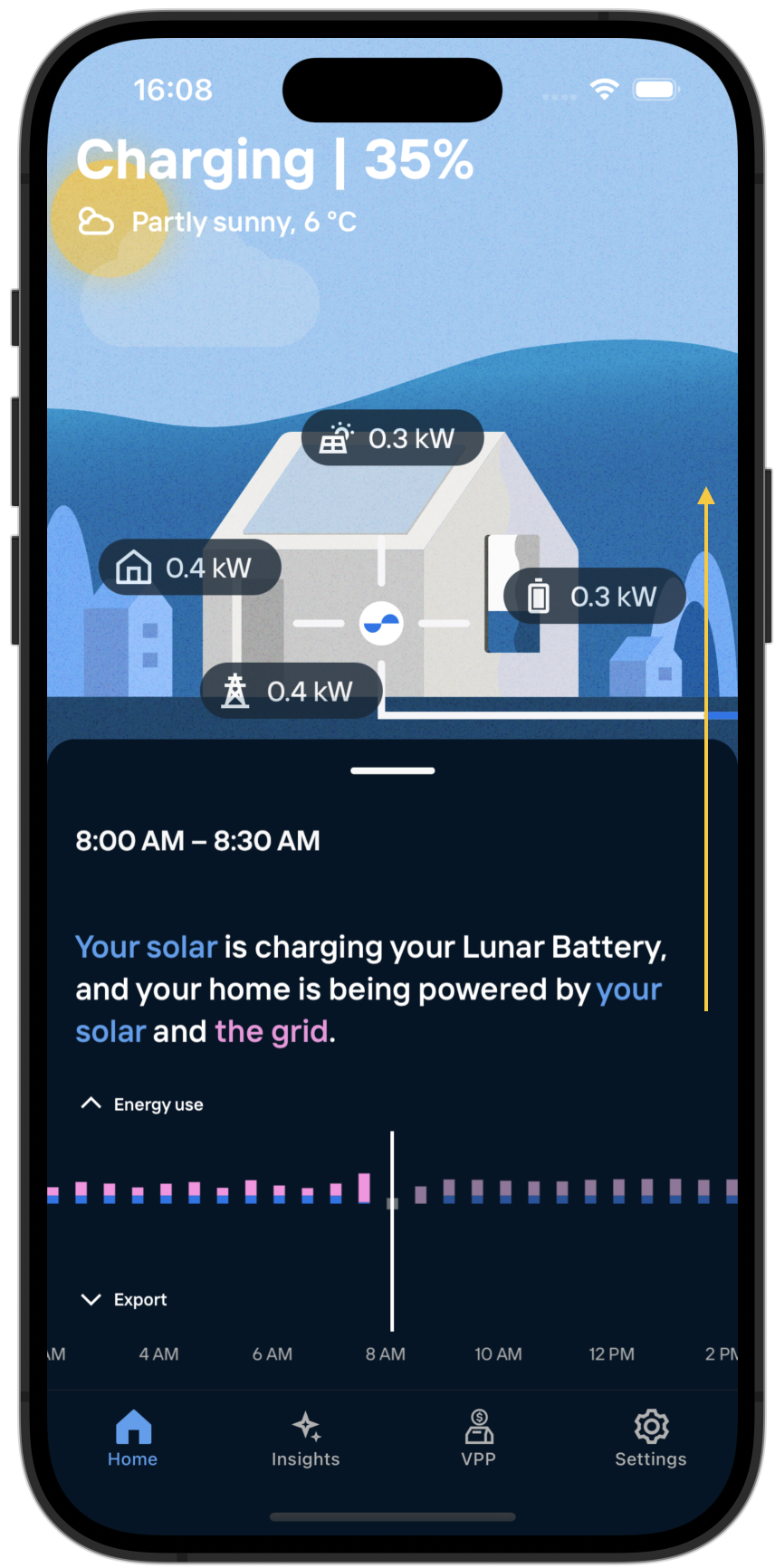
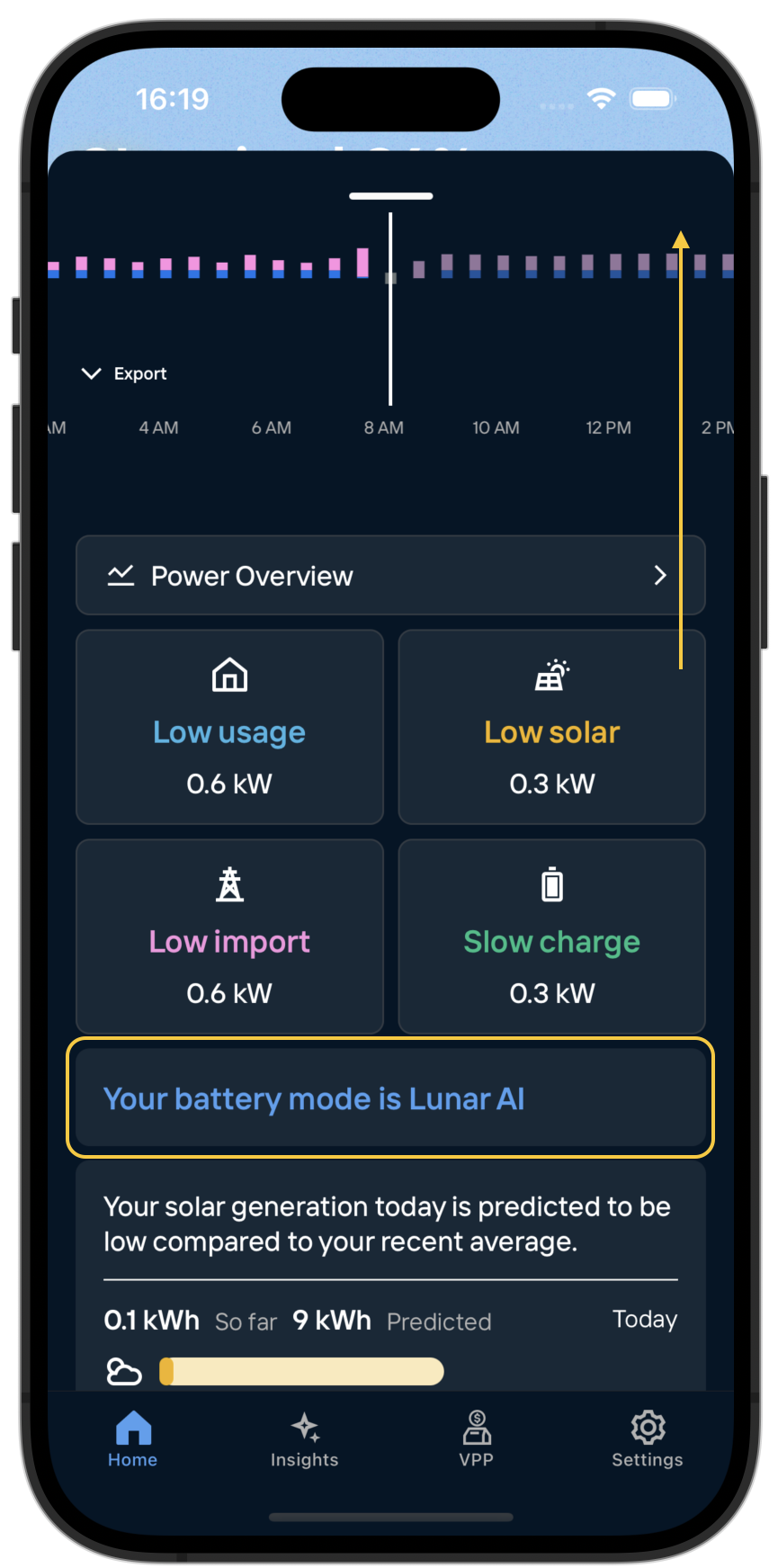
Within the Lunar App, you can see your system’s settings and, depending on your installer, adjust those settings yourself. To access these settings, scroll up on the home page and tap the battery card.
1. Battery modes
Within the Lunar App, you can see your Lunar System’s settings and, depending on your installer, change those settings yourself.
Your Lunar System will operate in a particular mode, which determines how it interacts with your solar, your household consumption, and the utility grid. These modes are described below.
1.1 Lunar AI
Lunar’s recommended mode.
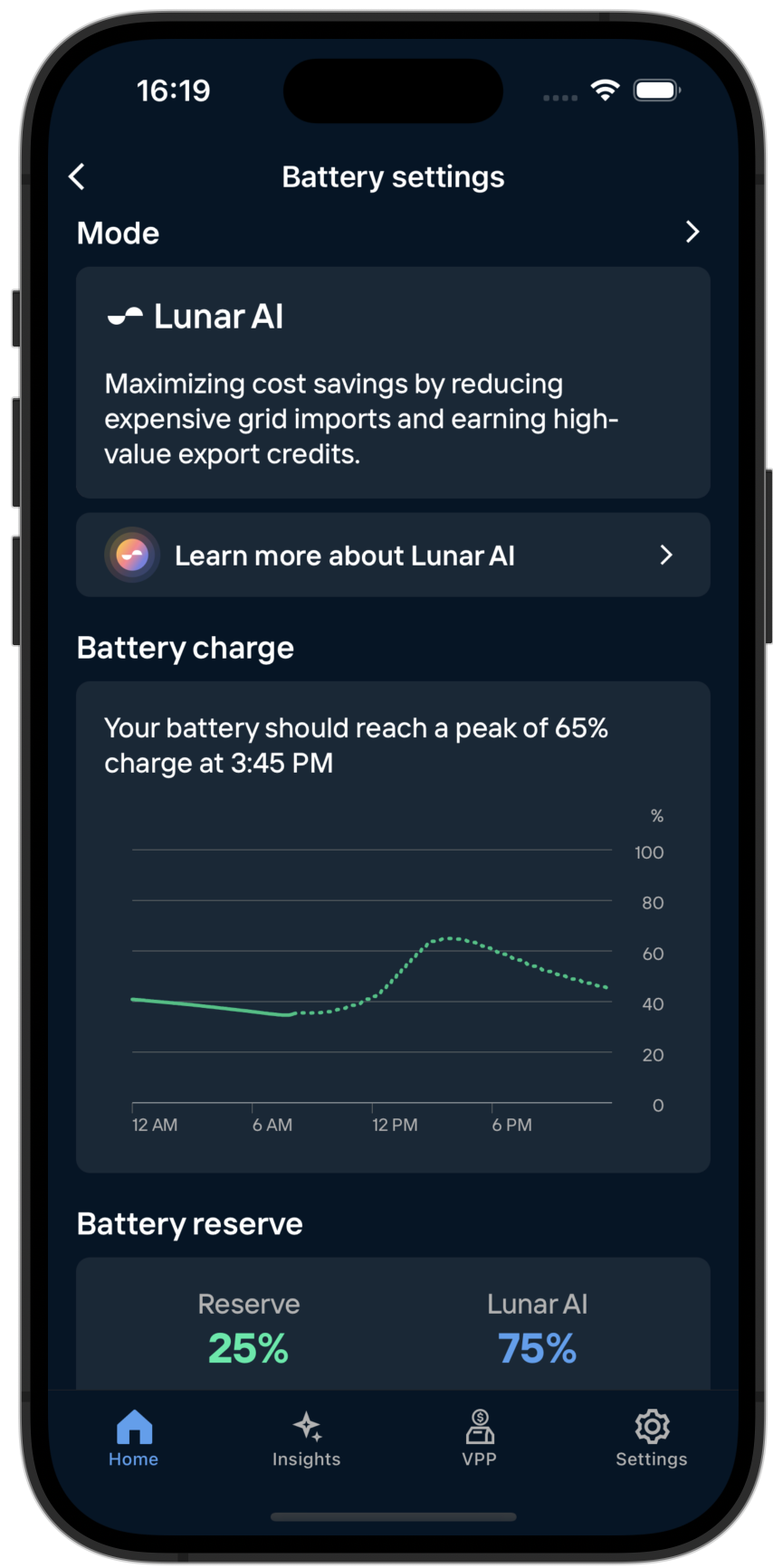
This mode uses Lunar’s proprietary AI to maximize your cost savings and bill credits, as well as making use of your home-made energy.
Lunar AI will create an optimal control plan for your battery to follow each day, based on your rate plan and our predictions of your home’s unique energy patterns.
1.2 Backup
This mode prioritizes using your Lunar System for grid outage support.
Your battery will charge until it’s full and remain at 100%, ready for a grid outage. This mode may reduce your cost savings or utility bill credits.
1.3 Self-consumption
Your battery will prioritize powering your home with your home-made energy. During the day, your battery will charge from any solar your home isn’t using. At night, your battery will power your home’s energy usage.
1.4 Time-of-use
Your Lunar Battery will follow the same control plan each day, regardless of weather or your energy patterns. This mode is only settable by your installer and cannot be set in the Lunar App.
2. Battery reserve
Your battery reserve is the proportion of your battery’s capacity that will always be saved for potential outages. If your battery reserve is set to 25%, this means your battery’s state of charge won’t go below 25% unless there’s an outage. The other 75% will operate in your chosen battery mode.
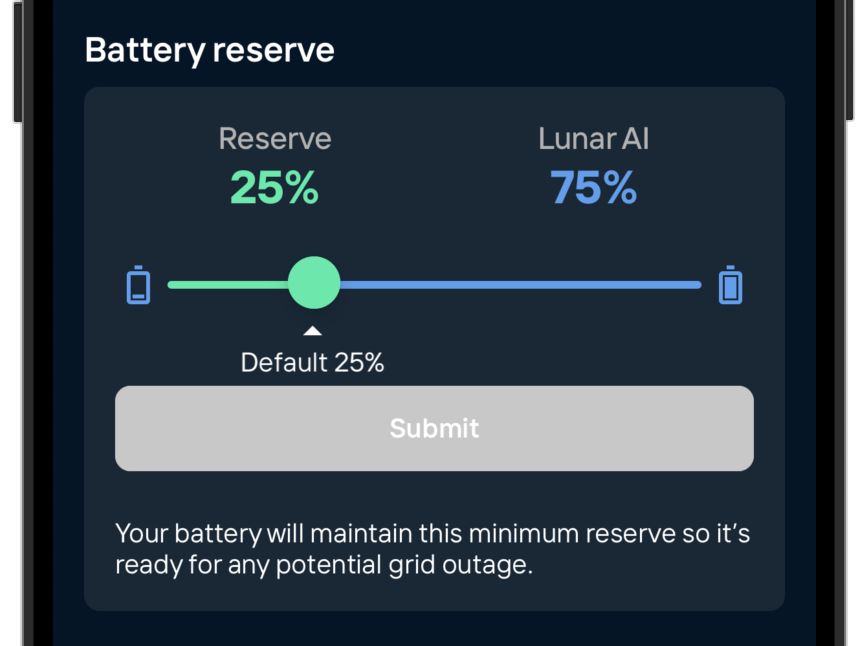
Visit battery settings to view your battery reserve. To adjust (if allowed by your installer) drag the green circle to your desired percentage and tap “Submit”.
3. Outage Watch
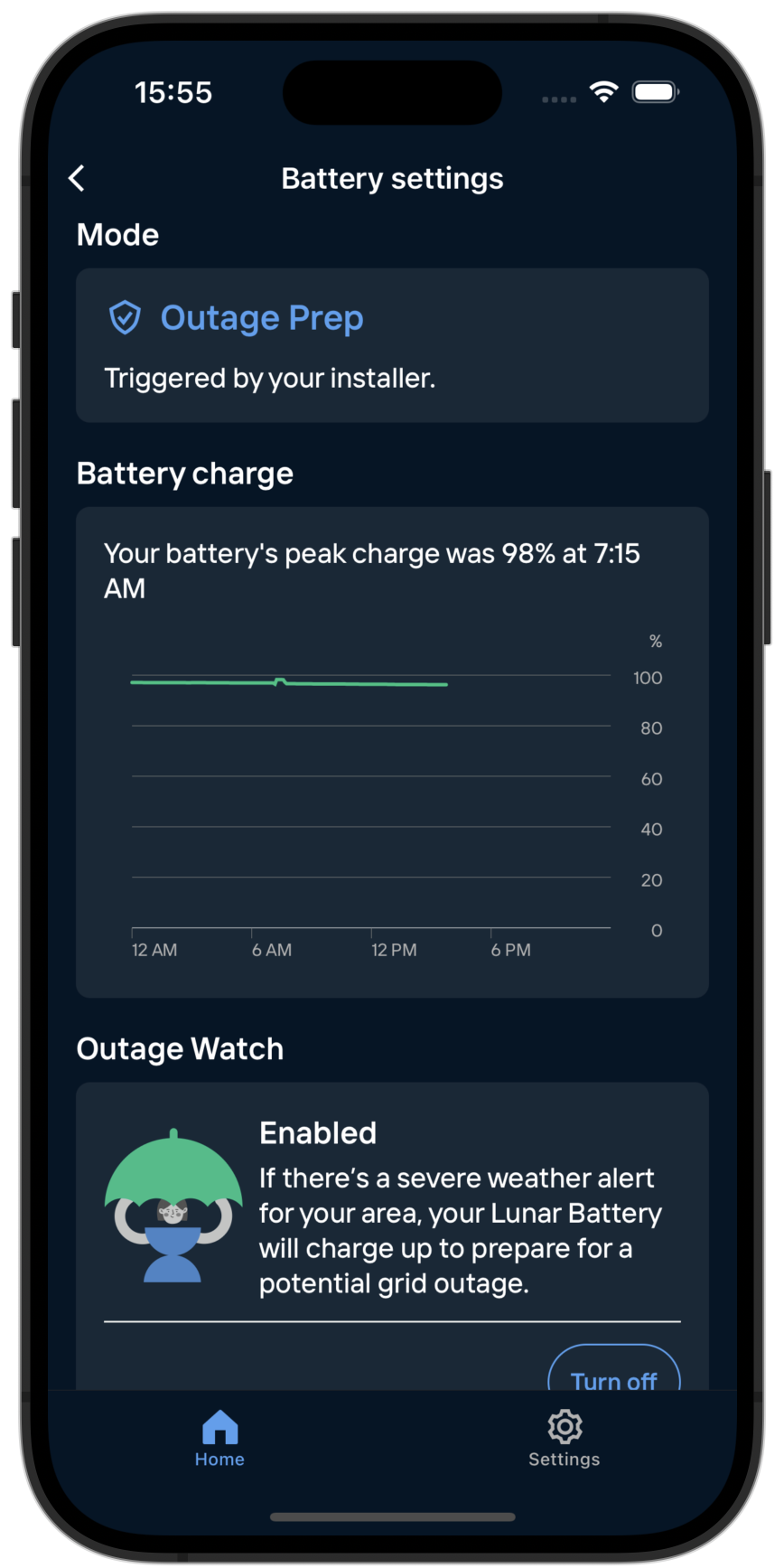
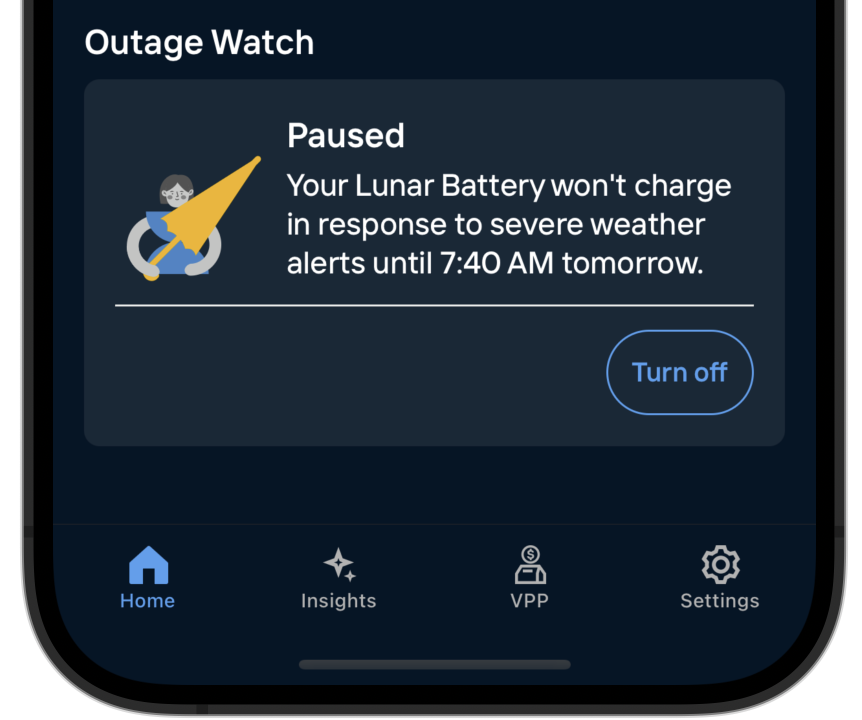
This setting automatically prepares your Lunar Battery for a potential grid outage caused by severe weather. You can find it at the bottom of the battery settings page.
Outage Watch will be automatically enabled when PTO is granted. You can turn off the setting (depending on your installer) from the battery settings page.
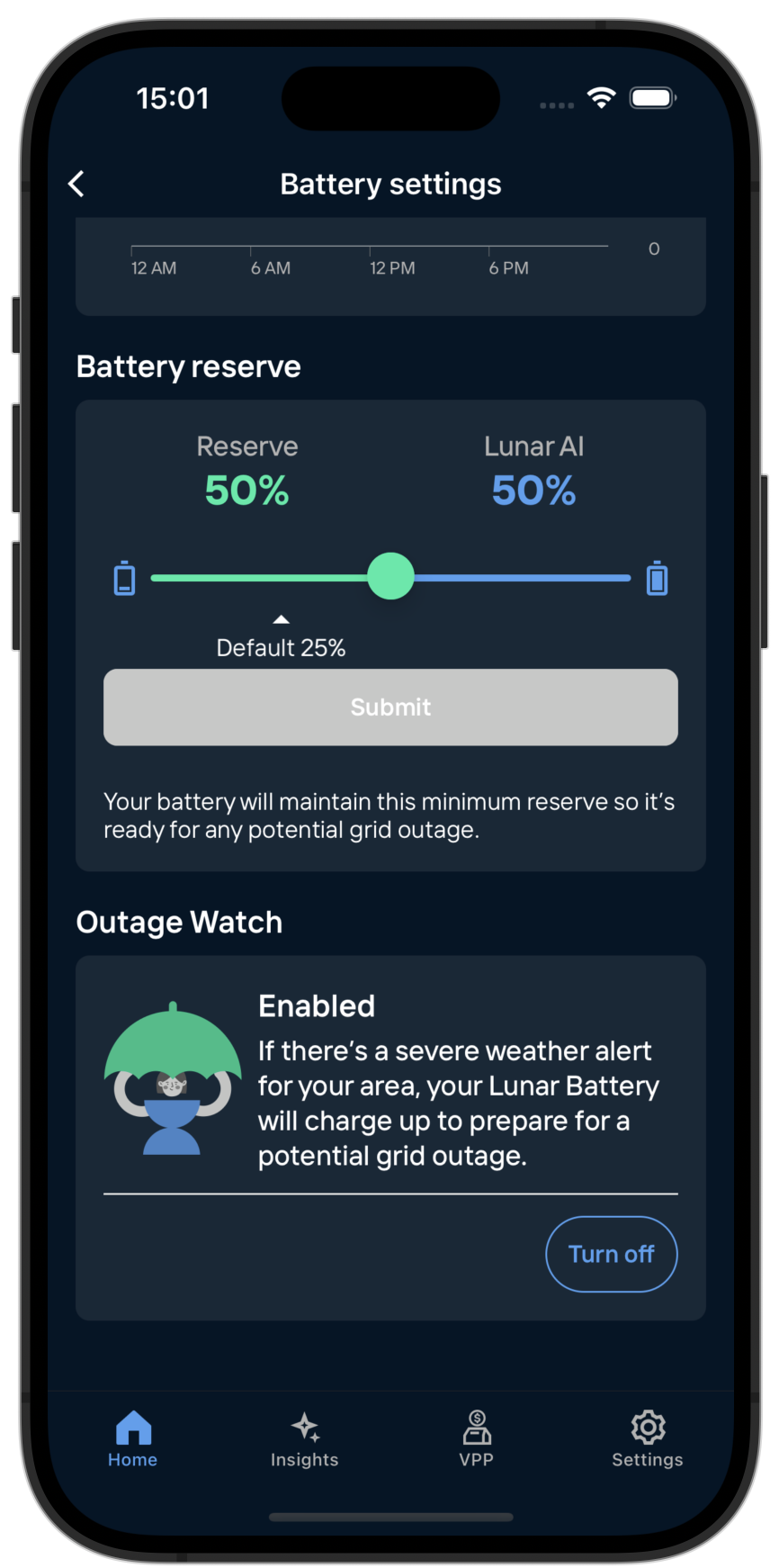
When a severe weather warning is detected, your system will move into Outage Prep mode, which prioritizes charging your battery to full and holding that charge until the alert passes or there’s a grid outage. Your home screen and battery settings will update to show when Outage Prep is active.
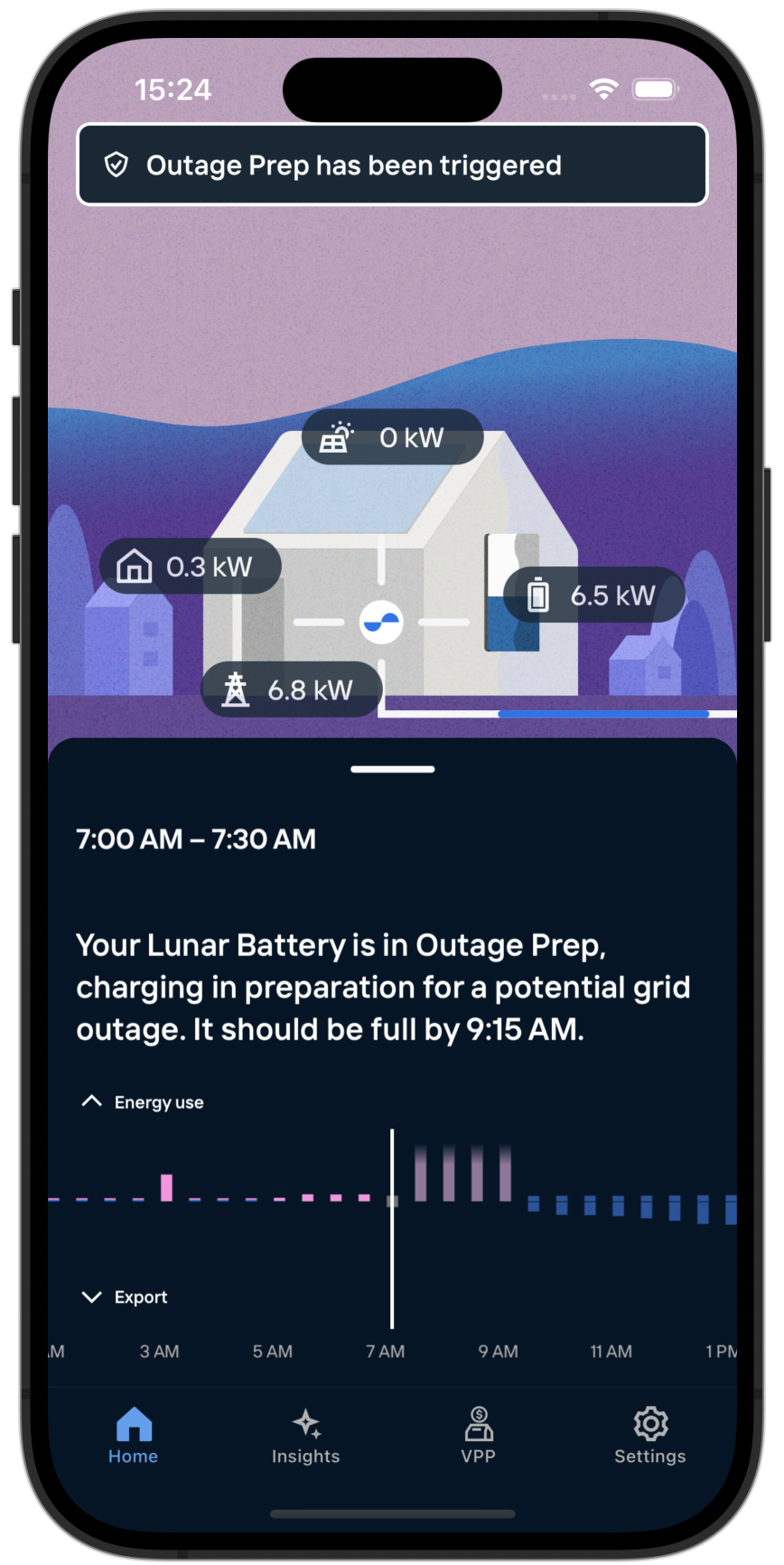
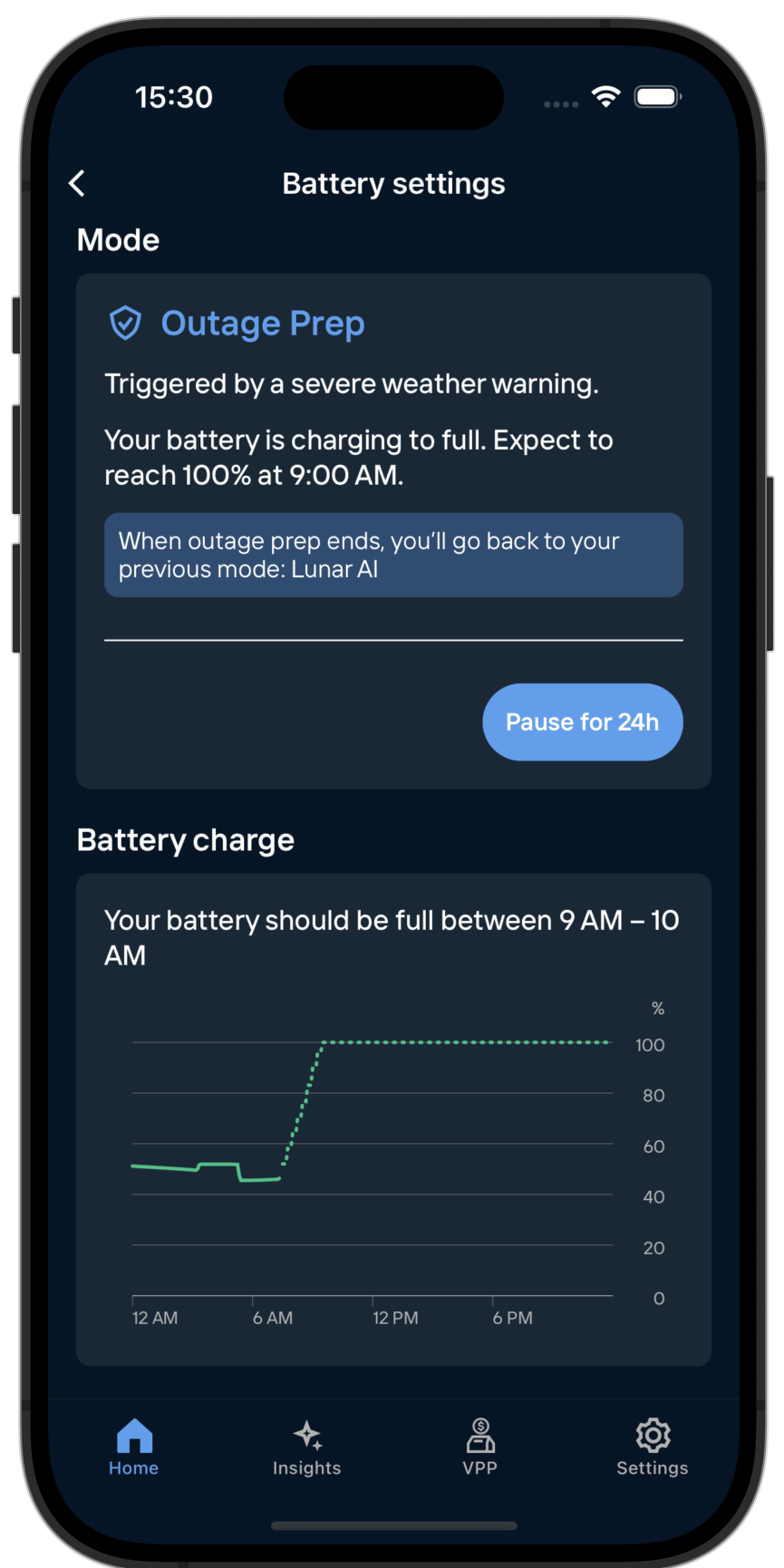
If necessary, when there’s a live event you can pause Outage Watch for 24 hours. Your system will revert to its previous mode until the pause ends.
Outage Prep mode can also be triggered by your installer if they’ve been notified of an event likely to cause a grid outage. The mode card on the battery settings page will specify if Outage Prep was triggered by weather or by your installer.